
Accessing Brand Assets
All ISU users will have access to the University’s set of logos, fonts, and colors within Adobe Express.
To add the Brand Kit to your Express account
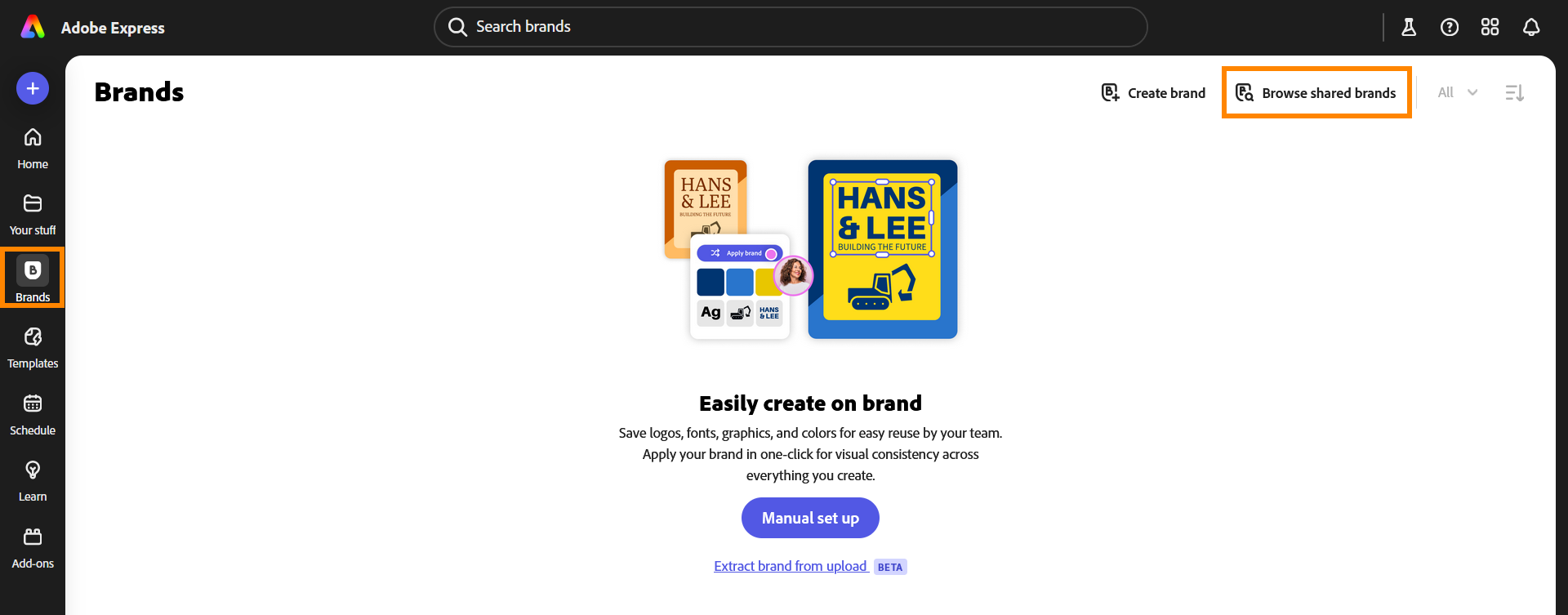
Click Brands on the left side navigation within Adobe Express.
Navigate to Browse shared brands in the top right of your screen.
You should see the “Idaho State University Brand- Official” icon.
Hover over this and click the blue button that says Add.
Return to your Adobe Express tab, refresh the page, and the University Brand Kit should appear as part of your Brands.
All ISU employees will receive an email from Kelsey West via Adobe Express confirming access to the Brand Kit. Please note that users do not need to take action on this message.
Accessing Branded Templates
Brand Templates are temporarily unavailable through the "Your Stuff" tab.
Once you’ve added the University’s Brand Kit to your Express account, you will be able to access pre-approved brand templates.
- Navigate to Brands on the left hand side of your screen in Express.
- You will see an icon for the “Idaho State University Brand - Official”.
- Click the orange I and the title of the kit at the bottom of the icon.
Here, you will find a folder called “Templates” where all branded templates will be added.
Branded Templates Release Schedule
Branded templates are being released in Express using a phased approach. The following table details when template categories will become available.
| September 2025 | February 2026 | July 2026 |
|---|---|---|
|
|
|
Additional training and a video tutorial for using and accessing the Brand Kit and Templates is available on the Training and Resources section.
Using the Veneer Font in Express
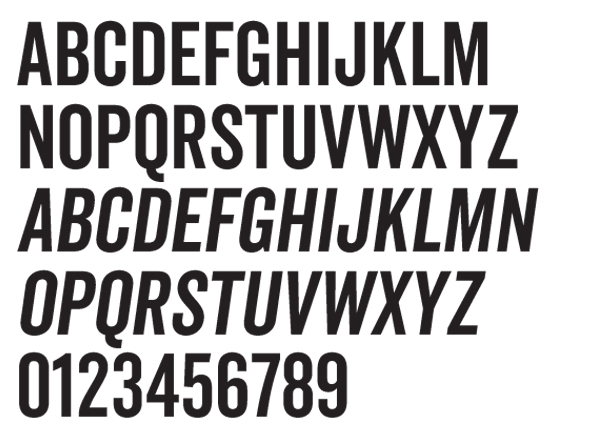
Some expressive templates designed to be used on more energetic or spirited pieces use our brand font “Veneer Clean Regular” or “Veneer Clean Italic”. This is not an Adobe Font and therefore must be licensed and downloaded to be used in Adobe Express.
Before you use one of these templates, be sure you are aware of the guidance listed below. A few simple steps may need to be taken to properly prepare your design.
Veneer MUST Be Used
- By those frequently creating branded materials.
- On mass distributed recruitment materials (digital or 200+ pieces)
Alternative Fonts May Be Used
- By those who infrequently create materials.
- On materials not used for recruitment with less than 200 pieces.
- Museo Sans Condensed 700 - 900 or Museo Sans 700 - 900 may be used in these cases instead of Veneer.
Installing Veneer Clean in Express
- Within the file editor, select the text boxes that use Veneer in the template you’ve chosen. The Text Editor will open on the left. Click the dropdown to choose a font and select "Upload” at the bottom of the dropdown.
- Click “Add Font” and select your licensed Veneer font files from your computer.
- In order to use the font, you may need to exit out of Adobe Express and reopen your desired template. Select the textbox using Veneer in the template, change the font to your uploaded Veneer, and edit from there.